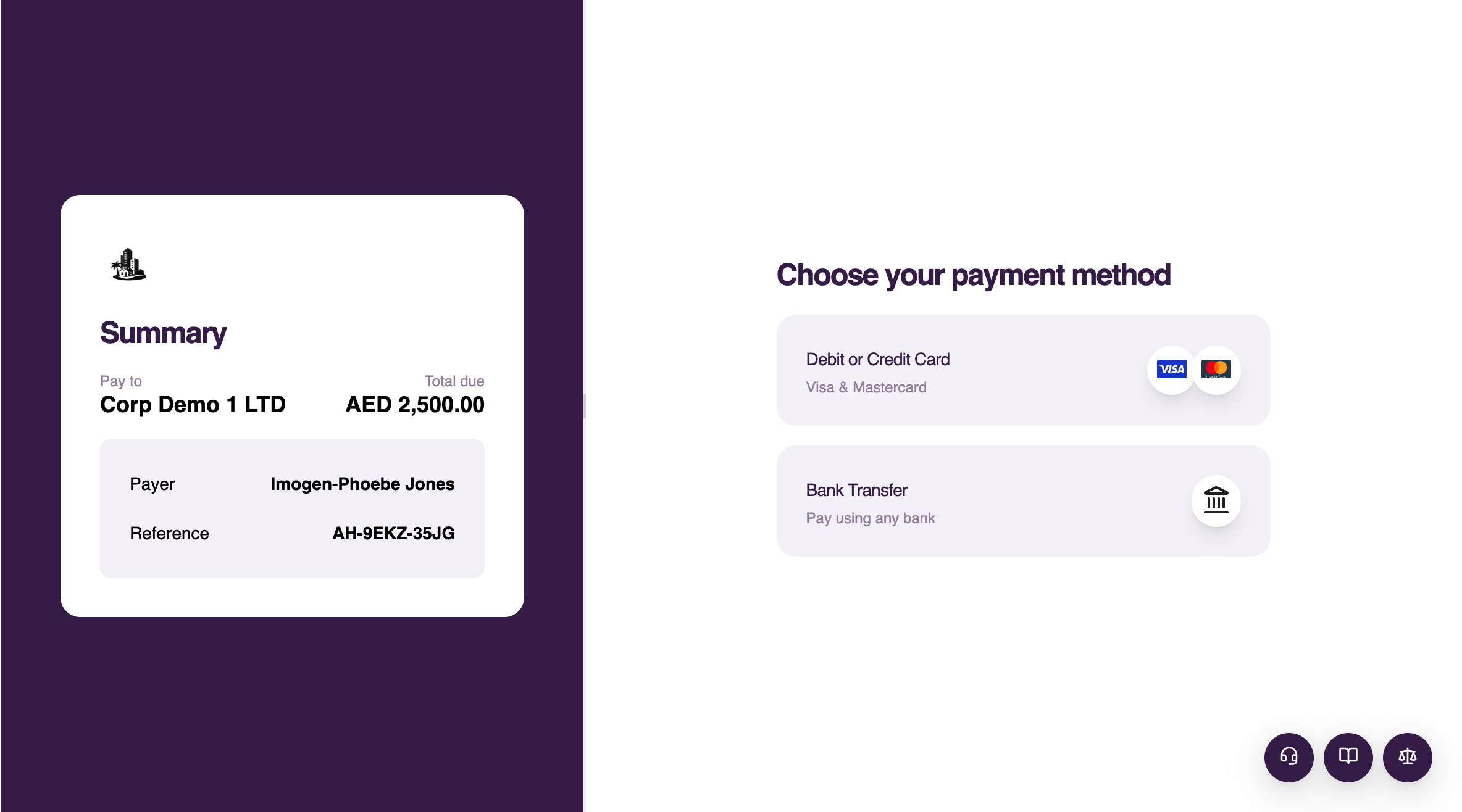
Payment page branding
Configure the branding used by Hubpay-hosted checkout and payment links for your account.
Brand settings
- Logo: the company mark shown in the payment experience
- Primary colour: the colour of the primary call to action, such as the pay button
- Accent colour: the colour of small marks such as chips and focus rings. Falls back to the primary colour when unset
- Background colour: the colour of the surface the checkout sits on. The embedded checkout stays transparent when unset
Brand settings apply at account level to hosted payment experiences created after the change.
Set branding on the account and every payment page uses it automatically. Most embedded integrations should not add branding to each payment request or URL; the parameters below are optional overrides for an individual embedded session.
Send only the colours you are changing — a colour you omit is left as it is.
Removing a colour once set is not currently supported here. The request is multipart form data, where an omitted field and an explicitly empty one are indistinguishable, so there is no way to say "clear this role" as opposed to "leave it alone". Set it to the value you want instead.
Embedded checkout colours
When you use embedded checkout in an iframe or direct native WebView, three URL parameters can override its colours:
For iframe setup, browser events and the required origin parameter, see Embedded checkout.
| Parameter | What it colours |
|---|---|
primary | Primary actions, such as the pay button |
accent | Small marks, such as the rate countdown ring |
background | The surface behind the checkout |
Values are hexadecimal, with or without a leading #. A # has to be escaped as %23 in a URL, so the plain form is usually easier.
If one embedded session must differ from the account branding, append the overrides to the paymentUrl returned when you create the payment request rather than building the URL from a host of your own. The origin parameter in this iframe example is not used by a direct native WebView:
https://pay.hubpay.ae/AH-VGTJ-24GX?embedded=true&primary=000000&accent=C39953&origin=https%3A%2F%2Fyour-domain.com
The embedded checkout is transparent by default, so the containing page or native surface shows through. Set background only when you want the checkout surface painted explicitly.
Hubpay adjusts a supplied colour wherever it would not be legible. A pale primary colour is darkened until its label can be read, and an accent that does not separate from the background falls back to a dark ink. Contrast is never reduced below accessibility requirements in order to match a brand exactly.
Those adjustments are measured against the checkout's own surface. Transparent checkout cannot inspect the surface behind it, so set background to match a dark container rather than relying on transparency — otherwise the accent is adjusted for a surface it is not really sitting on.
These parameters apply whenever the returned URL requests embedded checkout. HOSTED_PAGE payment requests and ordinary payment links use the account-level brand settings above.
Open the branding API reference