Corporate accounts
This guide covers API key management for corporate account holders — business accounts that have been granted API access by Hubpay.
Who can manage API keys
API key management is available to users with the Owner or Admin role on the account. Other users on the account will not see the API keys option.
Additionally, API access must be enabled on the account by Hubpay. If you believe your account should have API access but do not see the option, contact your Hubpay relationship manager.
Accessing API keys
-
Click on your account name at the top of the screen to open the account menu.

-
Select "Account" to open your account settings.
-
Select the "API keys" tab from the left-hand navigation.

Creating an API key
-
Click the "Create API key" button on the API keys page.
-
Enter the email address to associate with the credential. This is used for identification and audit purposes.
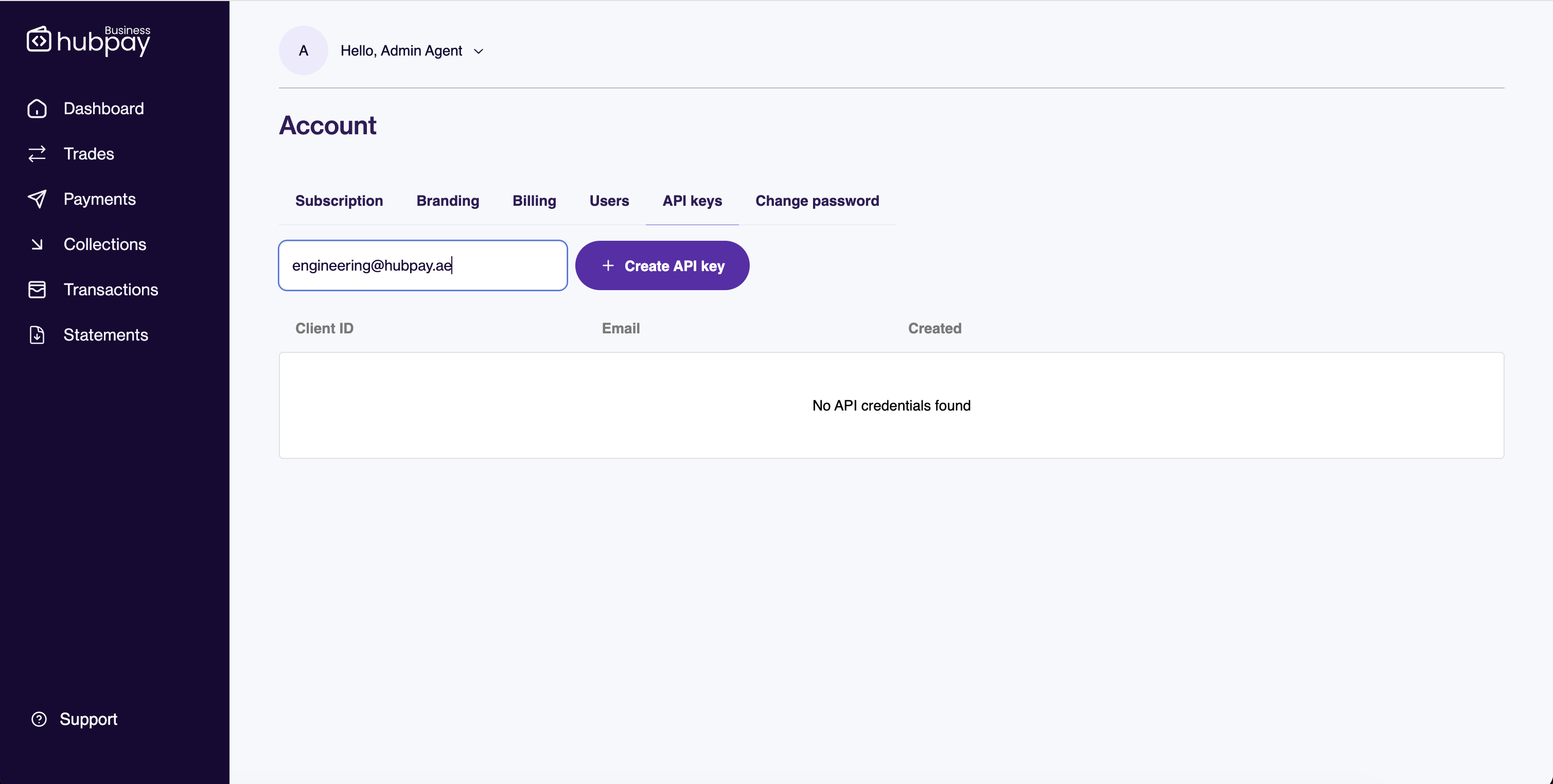
-
Click Submit. Your new credentials will be displayed:
- Client ID — use this to identify your application in API requests
- Client Secret — use this to authenticate your requests
- Account ID — the account identifier linked to this credential
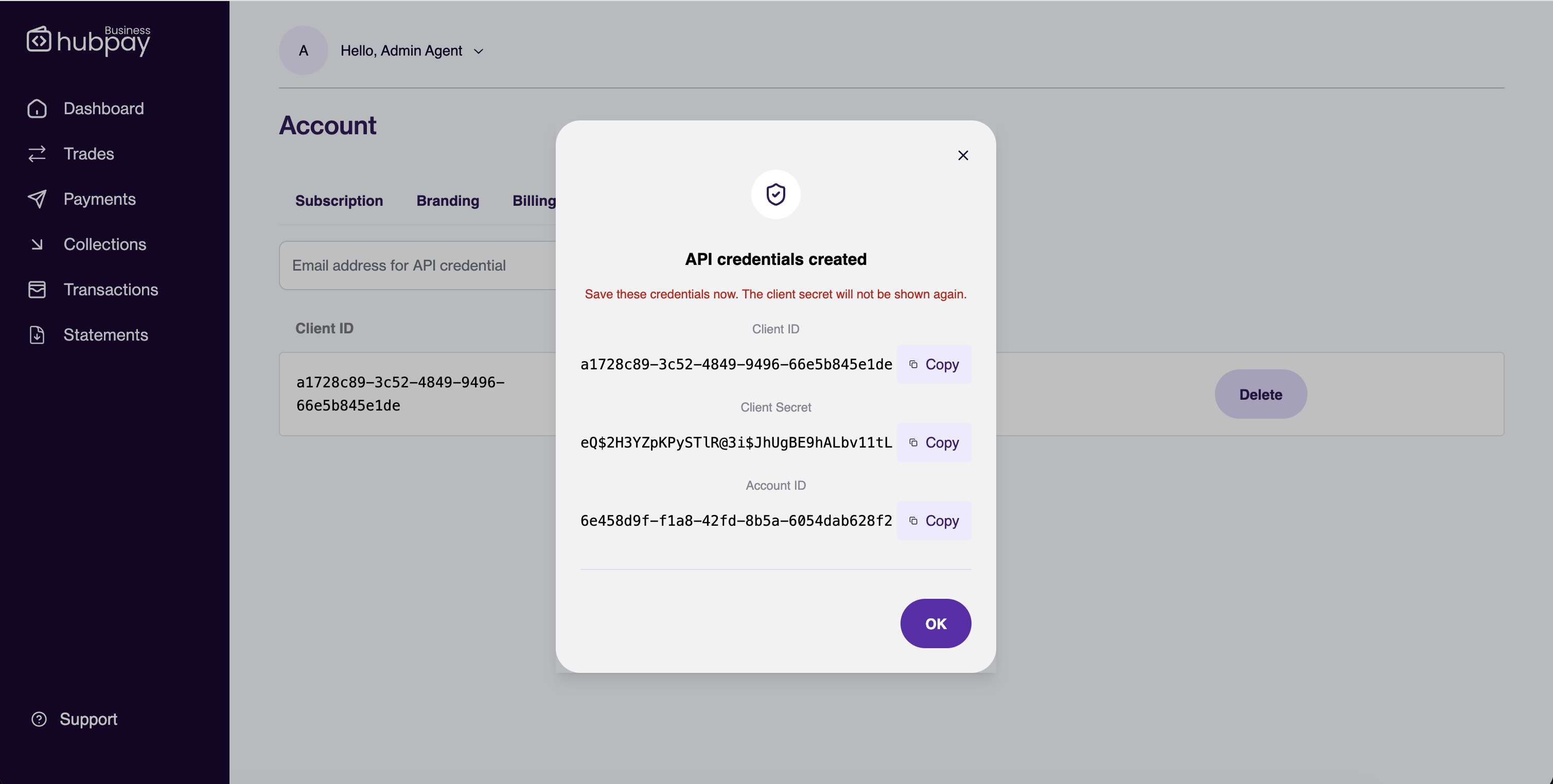
Important: The Client Secret is only shown once. Copy and store it securely before closing this dialog. If you lose the secret, you will need to delete the key and create a new one.
Viewing existing keys
The API keys page displays a table of all active credentials on your account:
| Column | Description |
|---|---|
| Client ID | The unique identifier for the API key |
| The email address associated with the key | |
| Created | The date and time the key was created |
Deleting an API key
-
Click the delete button next to the key you want to remove.
-
Confirm the deletion in the dialog.
The key will be revoked immediately. Any integrations using that key will stop working as soon as it is deleted.